
At a glance
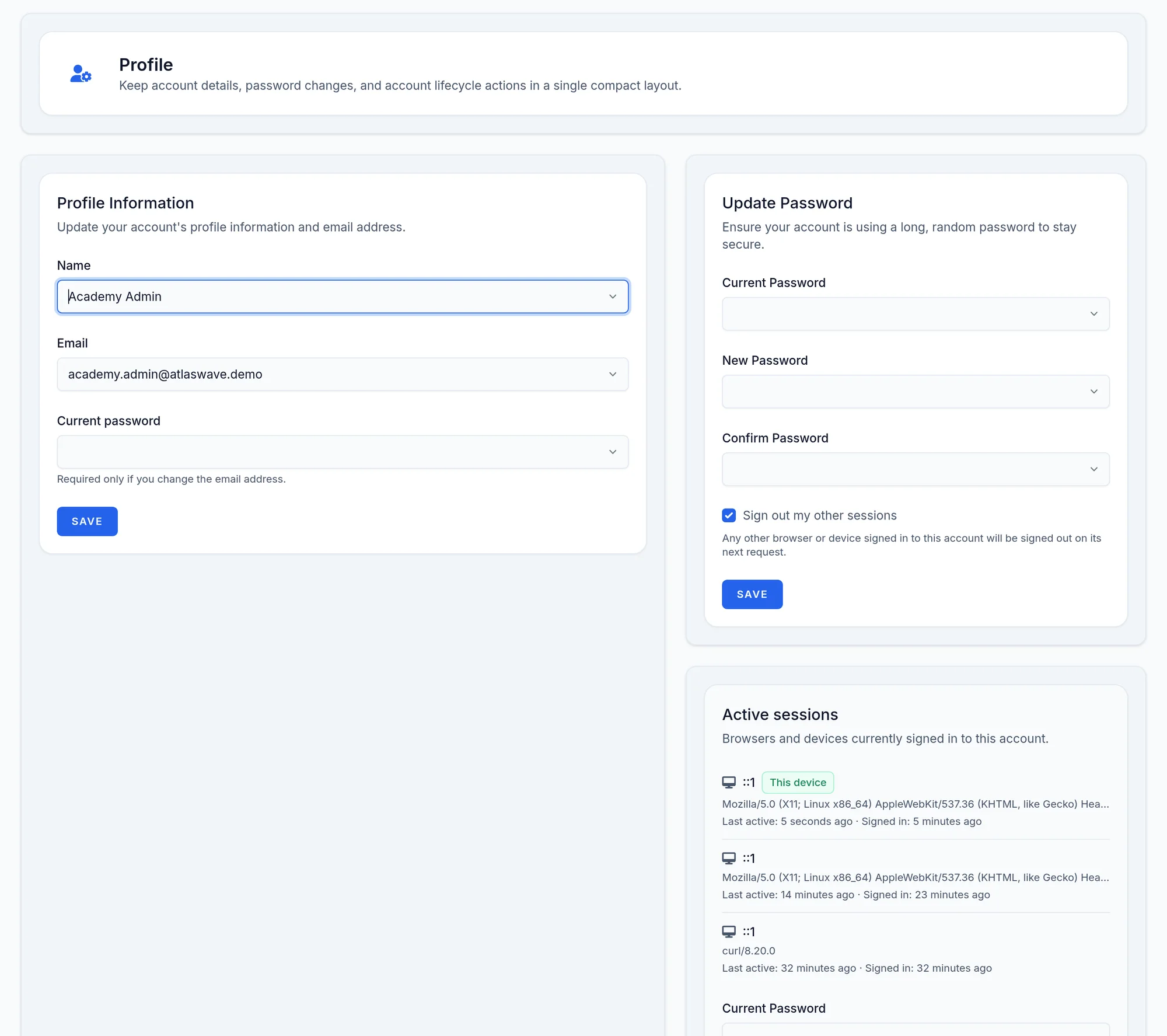
- WhereAdministration (cog), then Users, Roles, Manage Clients; account menu, then Profile.
- AccessAdministration. Manage Clients needs the multi tenant module.
- DataNone.
What the screen shows
What you can do
- 1
Create a user
Users, Add New User, identity and initial password, tenants, role, then your own password to confirm.
Limits and things to know
Password rules
At least 12 characters with upper and lower case, a number and a symbol.
The last administrator
The admin role cannot be removed from the last active administrator. Careful: deleting your own account from Profile has no such guard.
Support is not given to the administrator
Support permissions are not included automatically in the admin role: grant them from Roles or on the user page.
Read next
Users
Create your team's accounts, give each a role and the tenants they can reach, instead of sharing the administrator account.
ManualOperations
The password vault, collection schedules, outgoing email, backup and restore, the licence page and upgrades: the appliance's administration.
ManualSupport
Open and follow a ticket from the appliance, what to attach, and the remote assistance tunnel you turn on and off.