
Users, roles and tenants
One account per person, a role that sets what they can do, tenants that set what they see.
Before you start
- An administrator accountTo create the others.
- Your team listName and email of each person, and what they need to be able to do.
The steps
- 1
Open the users
Administration cog, then Users, then Add New User.
Administration, then Users
- 2
Enter the identity
Name, Email and an initial password, which the person will change from their Profile.
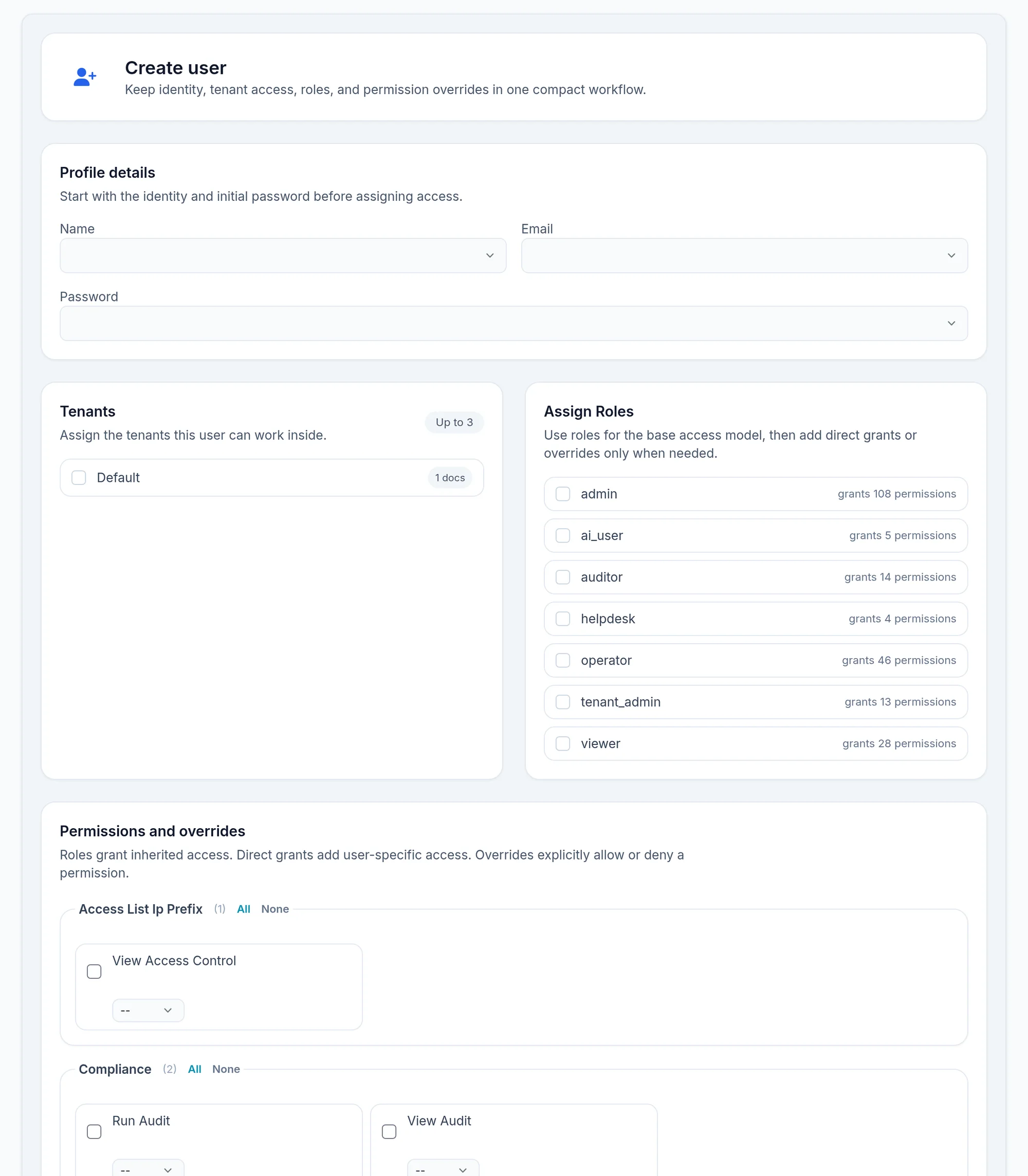
- 3
Grant access
Choose the Tenants the person works in, then their role: administrator to manage everything, viewer to read only. Permission overrides refine a particular case.
- 4
Confirm
Saving asks you to type your own password again: it is a safeguard, not an error.
What you should see
The new account in the user list. The person signs in with their email and only sees their tenants and the menus of their role.
With the multi tenant module, Manage Clients creates separate tenants, each with its own devices, credentials and data.
If it does not work
No tenants available
Create the tenant first in Manage Clients, or use the installation's default tenant.
The person sees one menu too many, or too few
Adjust their role in Roles, or an override on their account. Menus also depend on the licence modules.