
First sign in
The administrator account from the installation, and an interface that guides you while the inventory is empty.
Before you start
- The addressThe one shown at the end of the installation.
- The accountThe administrator email and password you wrote down at installation.
The steps
- 1
Sign in
Enter the administrator email and password. If the licence is not active, every page brings you back to the Licensing page, which says what to do.
- 2
Change the password
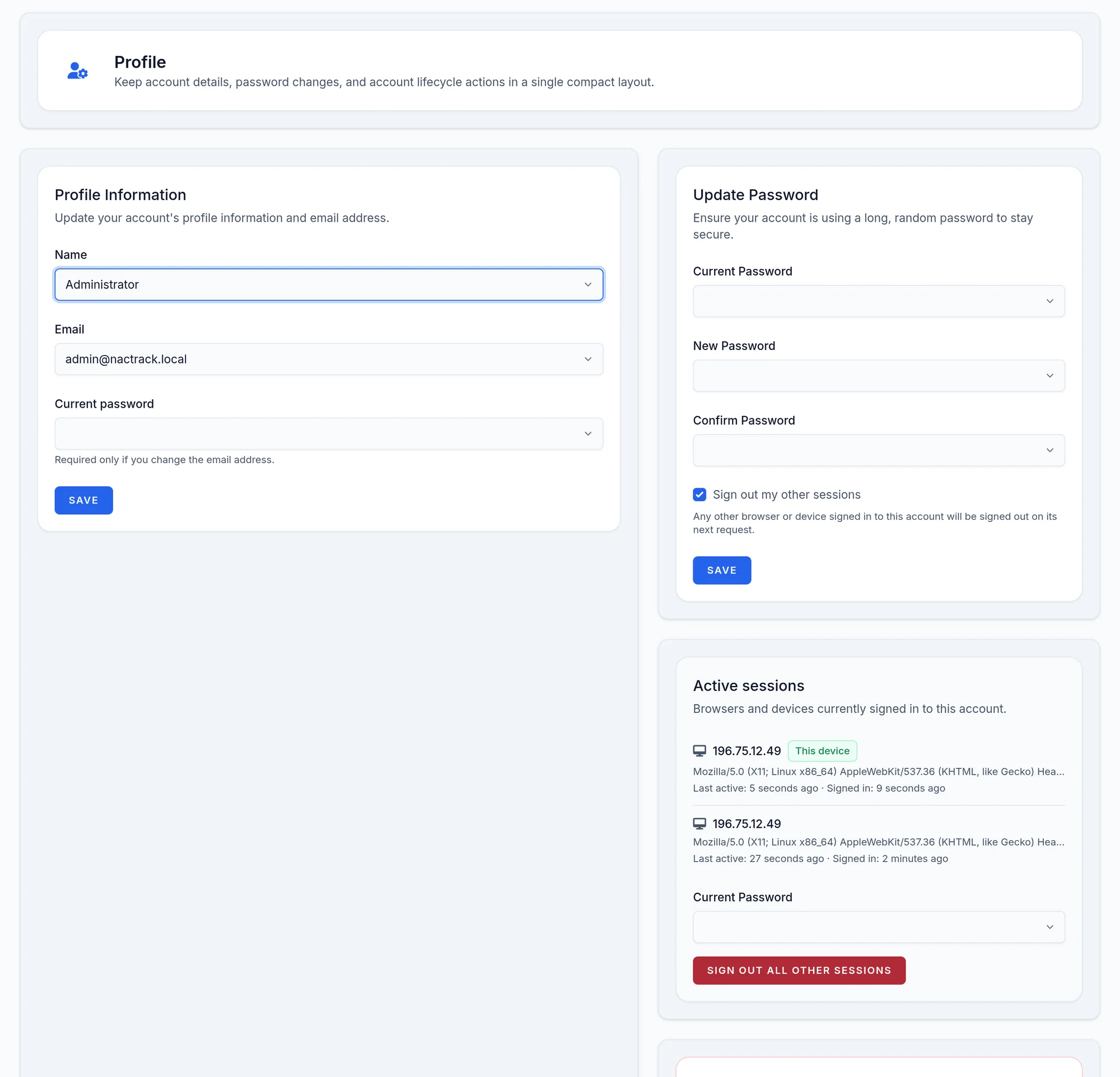
Open your account menu, top right, then Profile. The password section replaces the installation password with yours.
Account menu, then Profile
- 3
Pick the language
The EN and FR switch in the top bar changes the whole interface. The choice lasts for the session: at the next sign in, the interface returns to its default language.
- 4
Read the welcome page
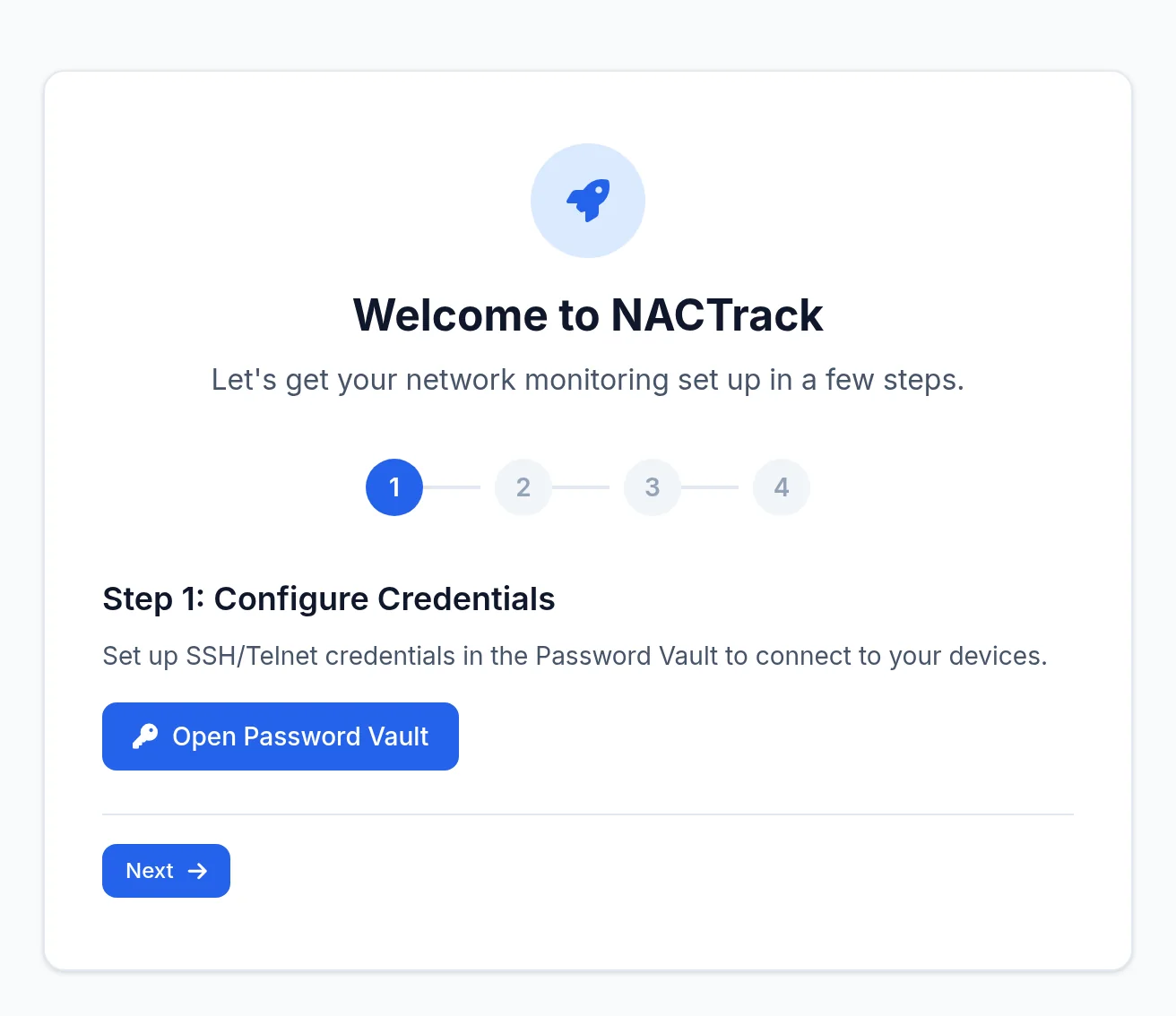
While the inventory is empty, the dashboard sends you to the Welcome to NACTrack page. Its four steps are the ones in this guide: credentials, devices, first collection, results. It goes away as soon as you add a first device.
Its buttons open each screen in a new tab.
What you should see
The top menu bar, the language switch, and the cog shaped administration icon on the right. That is where the password vault, schedules, users and backups live.
The menus you see depend on the modules in your licence; some carry a BETA badge.
If it does not work
I lost the administrator password
There is no email reset. Another administrator can set a new password from Users; otherwise, open a ticket.
Every page leads to Licensing
The licence is not active or could not be checked. The page says why. Check the HTTPS path out to our service, then contact us with the message shown.
A menu described here does not appear
It depends on a module missing from your licence, a permission of your role, or data not collected yet.