
Install NacTrack
One dedicated machine, two ways to put NacTrack on it, and an administrator login at the end.
Before you start
- A machinePhysical or virtual, dedicated to NacTrack. Sizing is detailed on the Installation and operations page.
- The networkAccess from that machine to your devices' management network, and an HTTPS path out to our service.
- Your licenceSupplied by Yuften with the installation media.
The steps
- 1
Choose how to install
The NacTrack ISO installs the system and the application on an empty machine, hardening included. The script installs NacTrack on a Debian compatible server you already run, Ubuntu Server for example.
- 2
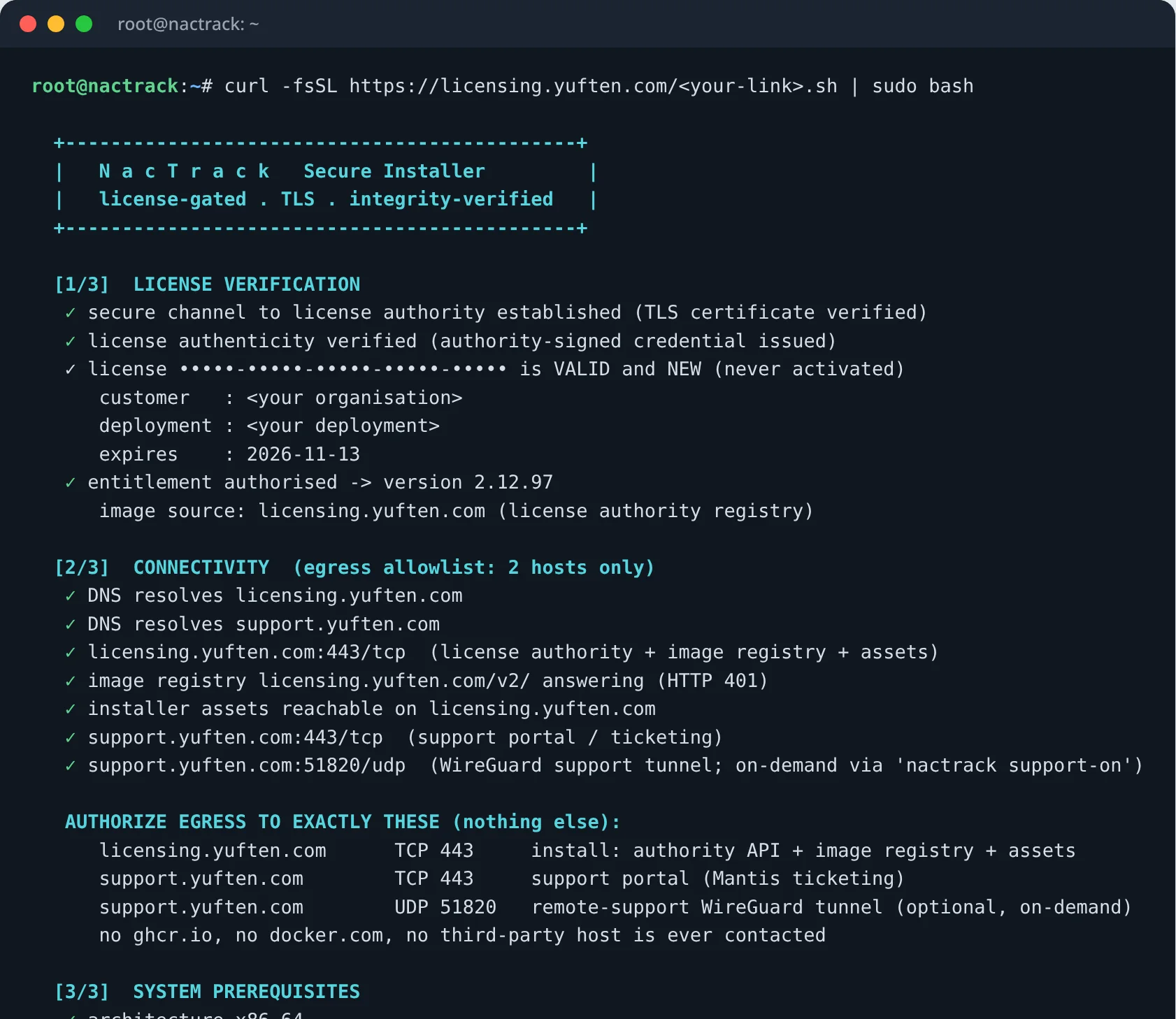
With the script: run the command
On the server, as an administrator, run the command we sent you. The installation checks the licence, the network and the machine before it changes anything, then installs and starts the application.
Allow from a few minutes to half an hour depending on your bandwidth.
- 3
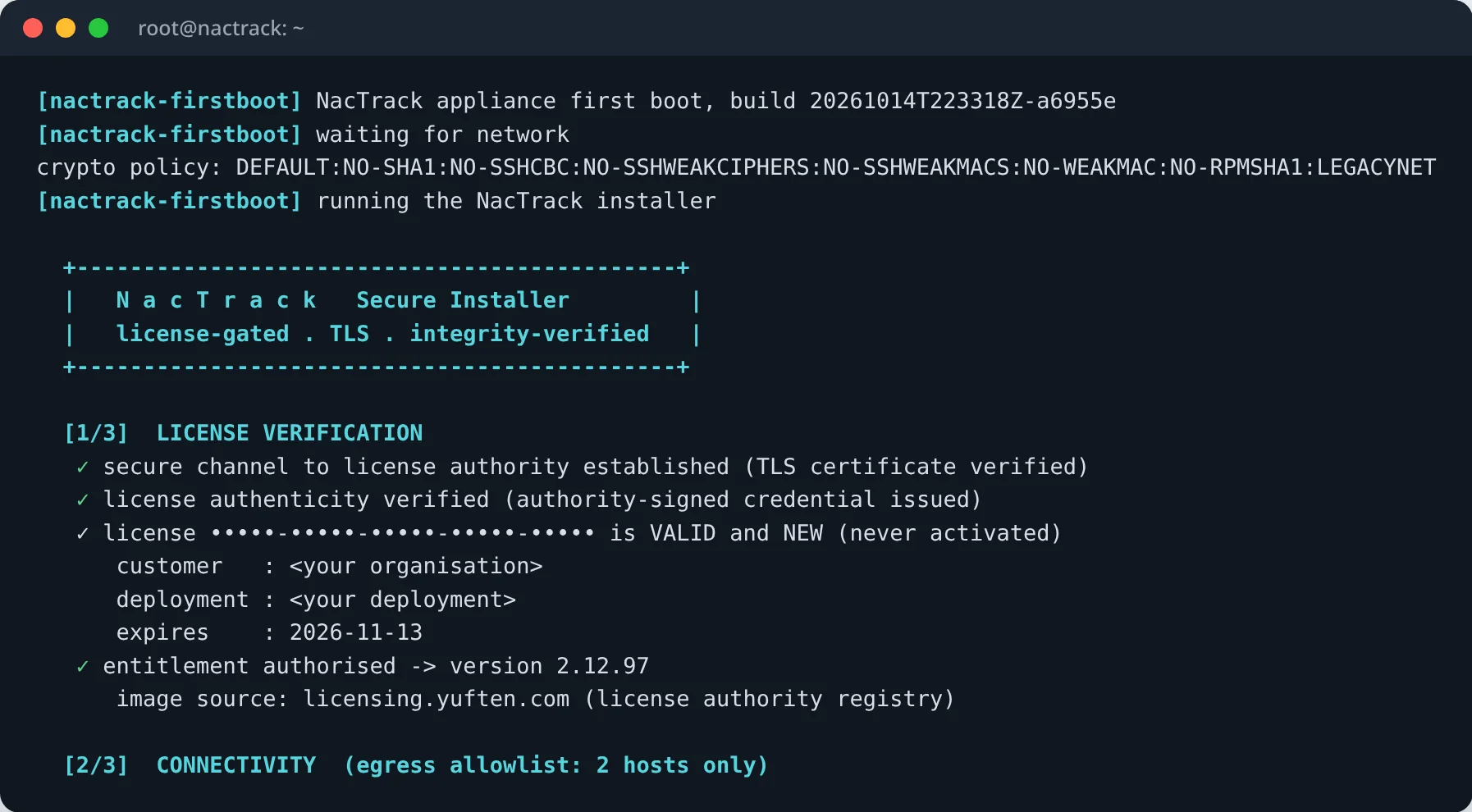
With the ISO: boot from the image
Boot the machine from the ISO, from a DVD, a USB stick or your hypervisor's virtual drive. The system installs by itself, with no questions, then the machine powers off. Remove the ISO and start from the disk: on first boot, the same NacTrack installation runs from the media, and resumes on its own at the next boot if it is interrupted.
With the ISO, the administrator account is written to /root/nactrack-install.log, and a recovery key for the encrypted disk to /root/nactrack-luks-recovery.txt: copy that key off the machine.
- 4
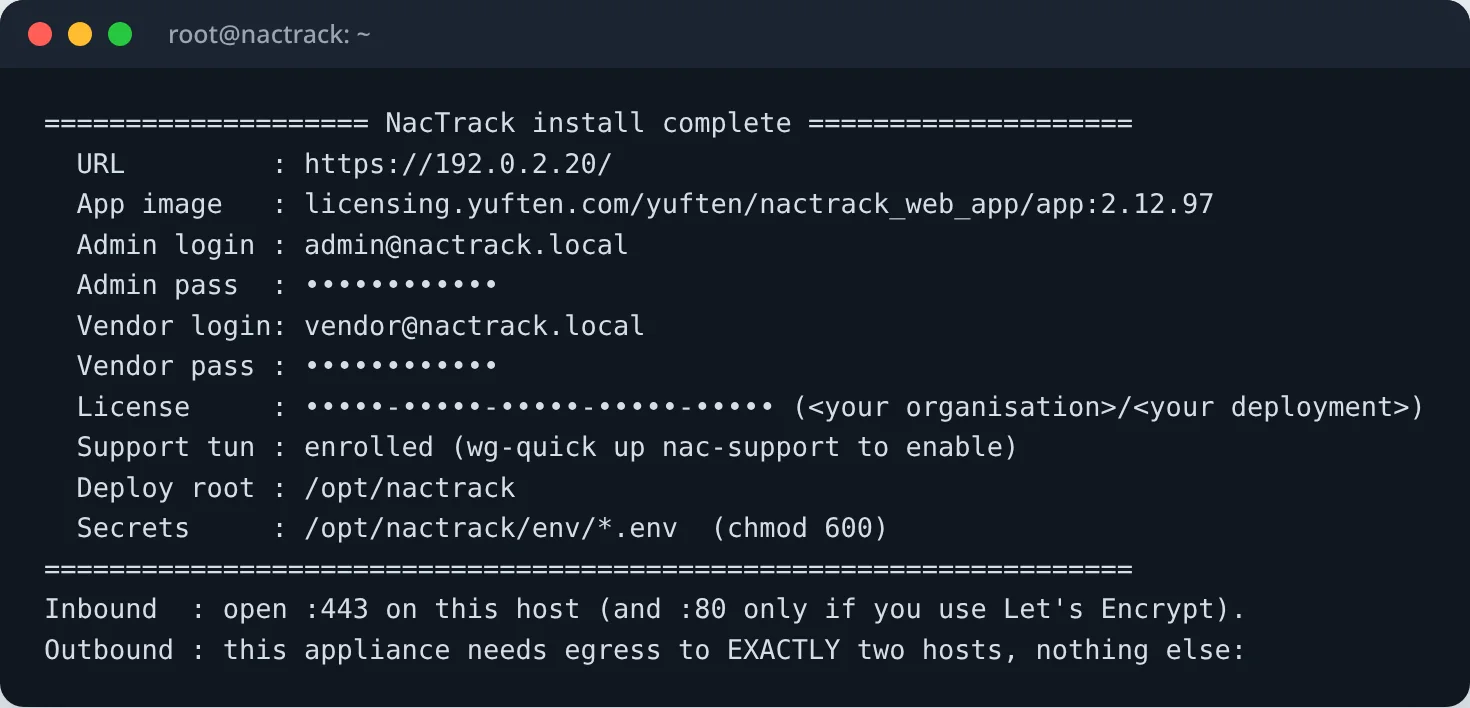
Write down the address and the administrator account
At the end, the screen shows the interface address and the administrator account created on the spot, with its password. They are kept nowhere else: store them.
- 5
Open the interface
In a browser, from an administration workstation, open the address shown, over HTTPS.
The certificate installed by default is self signed: the browser says so, which is expected.
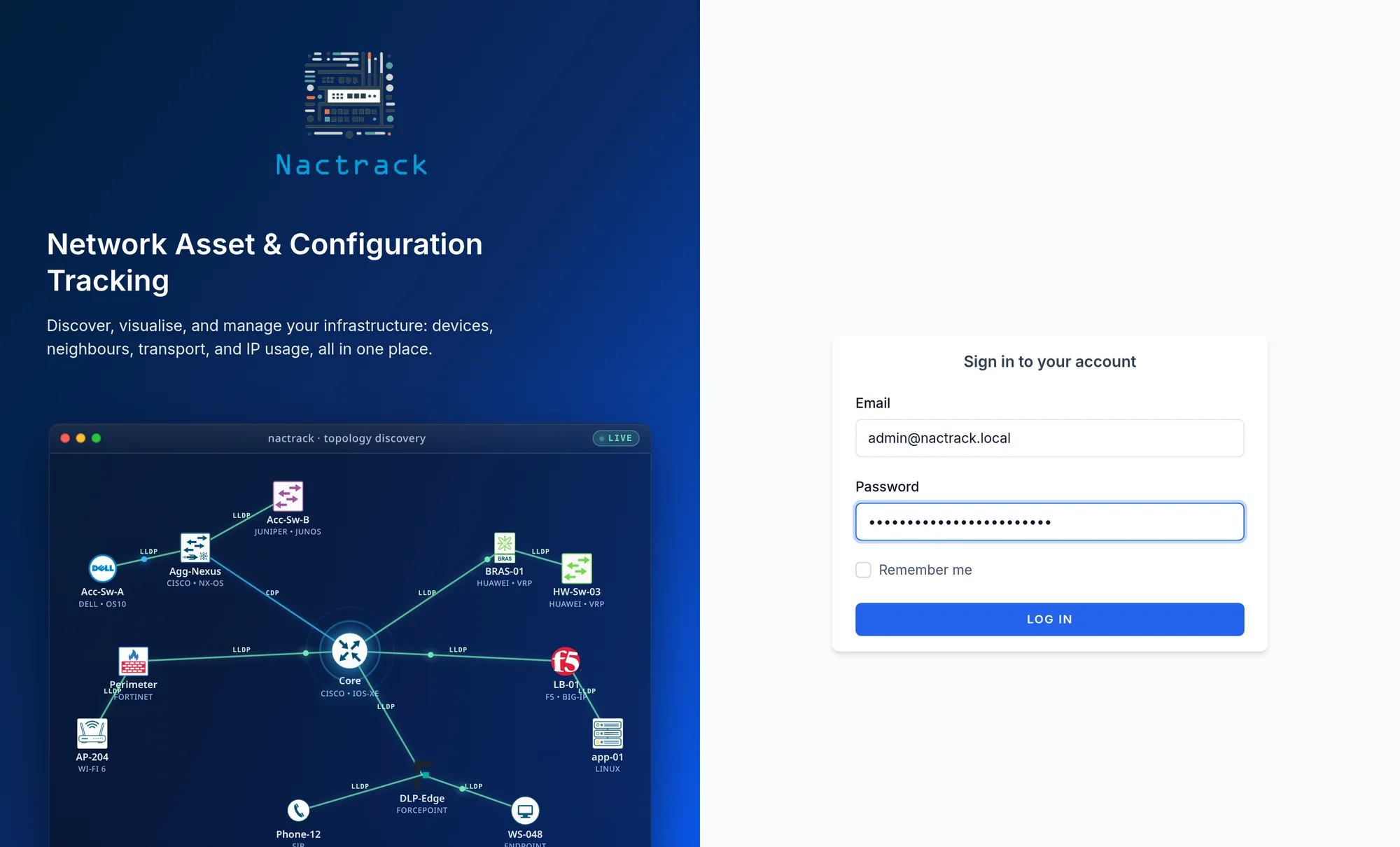
What you should see
A NacTrack sign in page, over HTTPS, at the machine's address.
Machine sizing and network flows are detailed in installation and operations.
If the end of installation screen says the support tunnel is up, our team can also assist you remotely, through that tunnel only.
If it does not work
The installation stops before it starts
The opening checks cover the licence, the network and the machine. The message names the one that failed; the most common is a blocked HTTPS path out. Send us the message as it is.
The installation link no longer answers
An installation link can be single use. Ask us for a new link rather than testing it in a browser.
The browser refuses the page
Check that port 443 on the machine is open from your workstation, then accept the warning about the self signed certificate.