
Add your devices
A device is declared by its IP address. For a whole estate, discovery starts from one device and follows its neighbours.
Before you start
- A credentialCreated in the vault in the previous step.
- The addressesThe management IP address of each device, reachable from NacTrack.
The steps
- 1
Open the form
Inventory menu, then Add New Device.
Inventory, then Add New Device
- 2
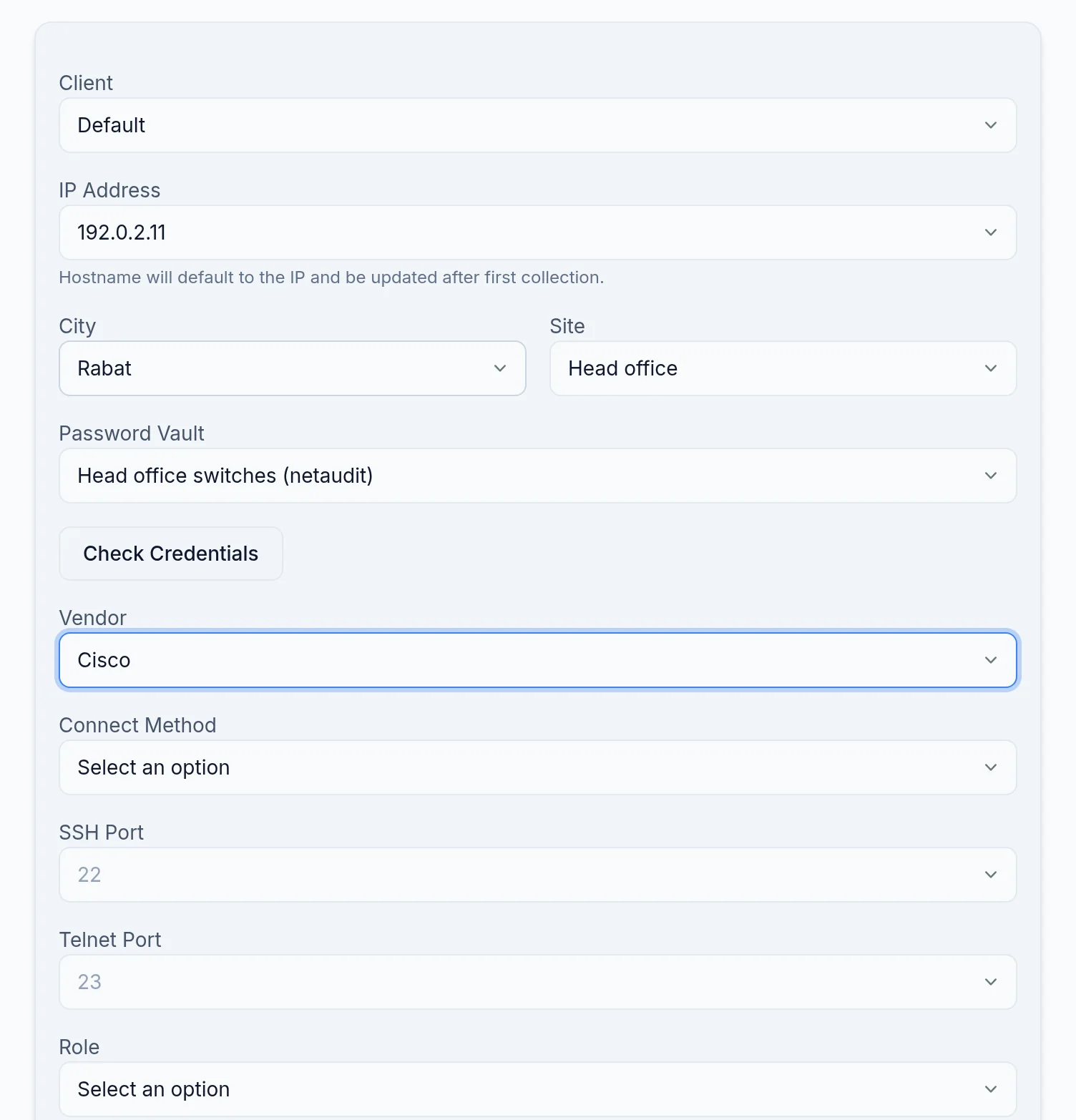
Enter the address and credential
Only the IP address is required; the device name is read at the first collection. Pick the credential from the Password Vault list, or Custom credentials for an account specific to this device.
- 3
Set the connection
Set the vendor if you know it, otherwise leave the default. SSH on port 22 is the normal case; Telnet only for a device that has nothing else.
- 4
Test before saving
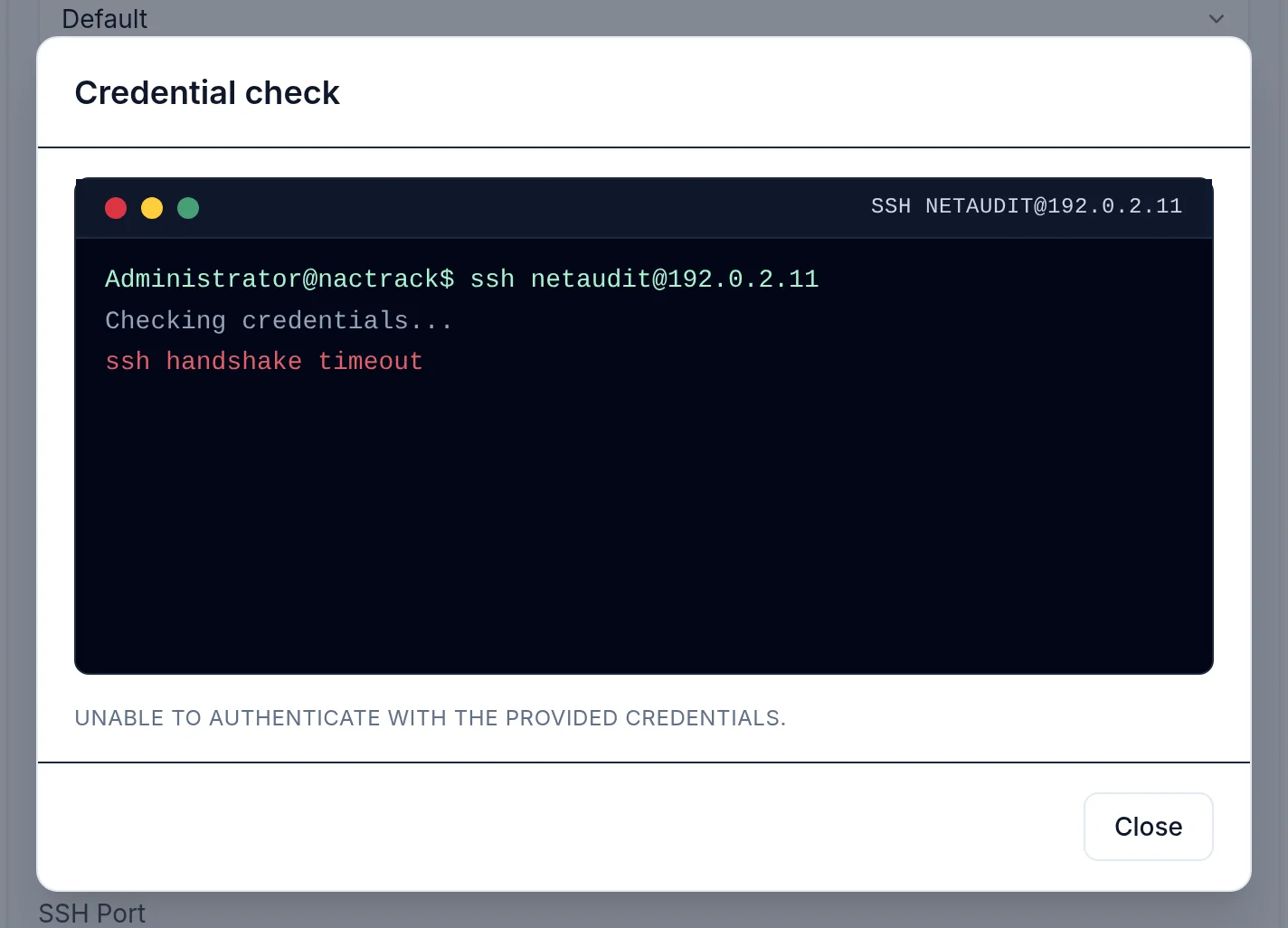
Click Check Credentials: NacTrack opens a session on the device and says whether the account is accepted, and whether it is privileged.
- 5
Save
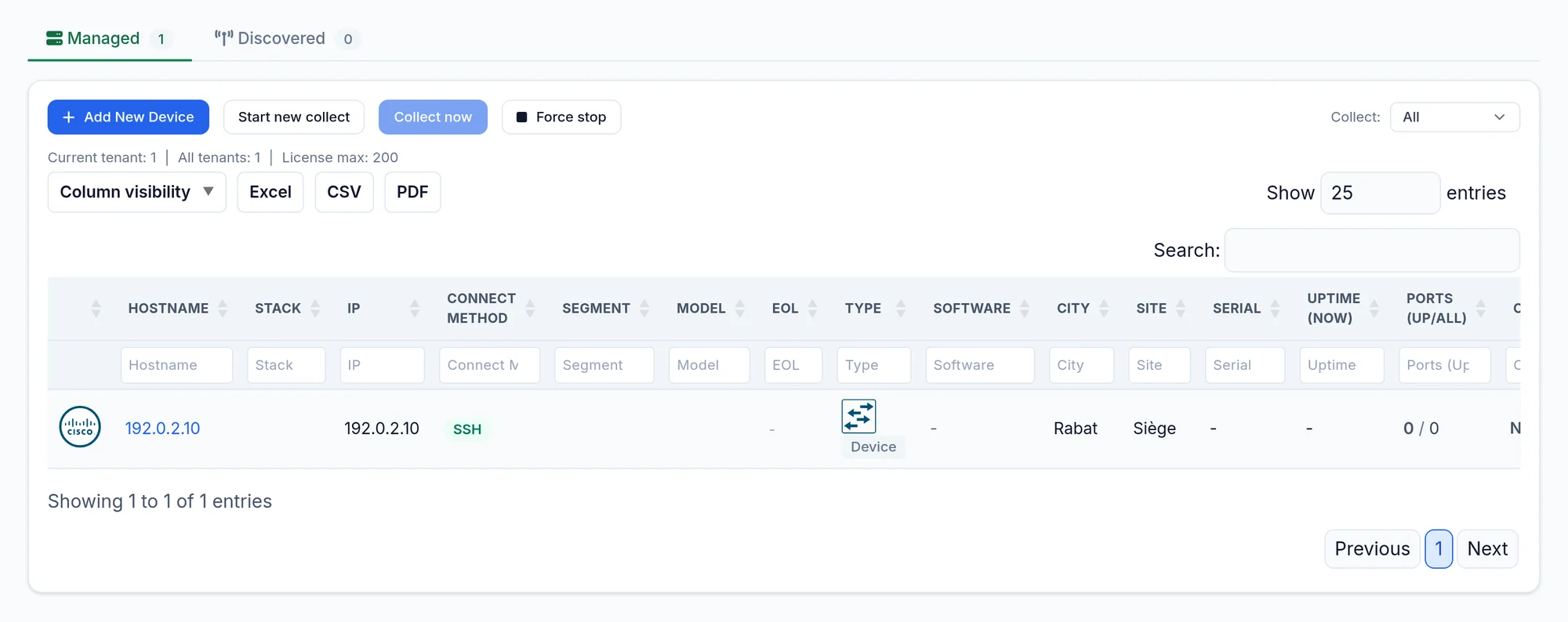
Save & Add Another keeps the form open for the next device. Save & Sync starts a collection of that device straight away.
- 6
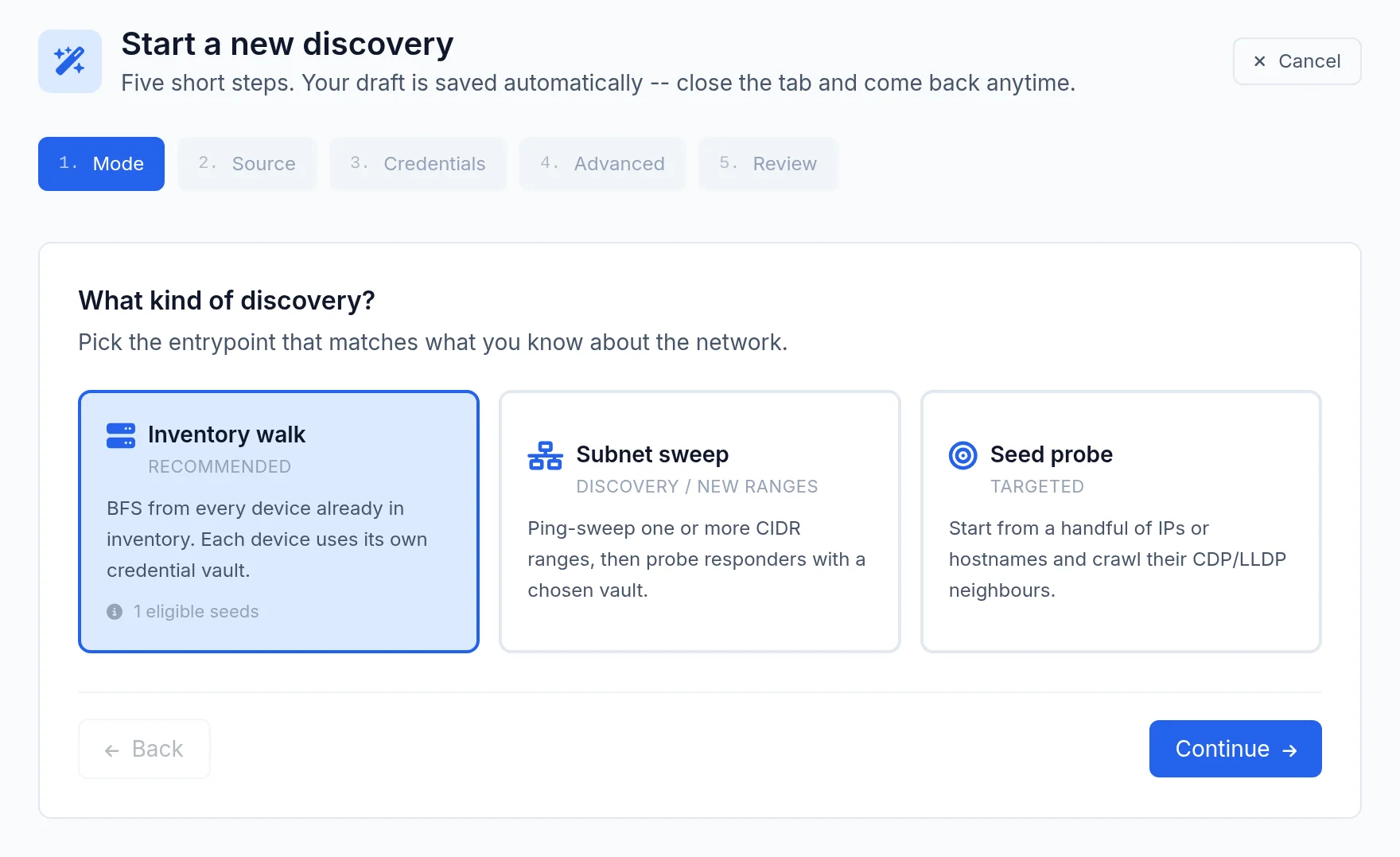
For many devices: discovery
Inventory menu, then Discovery, then Start a new discovery. Three modes: start from the devices already in the inventory and follow their CDP and LLDP neighbours, sweep subnets, or probe a list of addresses. Pick the vaults to try: what answers is added to the inventory and collected, options ticked by default.
There is no list import from a spreadsheet; Config Import is for saved configurations of devices you cannot reach.
What you should see
Added devices appear under Inventory, then Devices, with their IP address as their name until they have been collected.
If it does not work
Add New Device is greyed out
The message License authority unreachable means NacTrack cannot reach our service. Restore the HTTPS path out; adding works again.
I am sent to the Licensing page
Your licence's device count is reached. Contact us to extend it.
Check Credentials fails
Read the line above the banner, which gives the real cause: ssh handshake timeout for a device that does not answer, connection refused, password refused. The banner itself mentions authentication in every case. An unreachable device can take up to three minutes to fail.
Then test an SSH login from NacTrack's network, and fix the entry in the vault if it is the cause.