Before you change or retire a VLAN you need to know what is actually using it. The VLAN inventory lists every VLAN found on every switch, with the ports assigned to it, so one page answers the question across the whole estate instead of one switch at a time.
The same procedure as a recording, subtitled in English and French. This recording predates the latest revision of the steps: it opens on a screen the written guide no longer includes.
Before you start
What you need
Module required: inventory.
Permission required: view_inventory.
all
1. Open the Inventory menu
app.nactrack.com/inventory/vlans
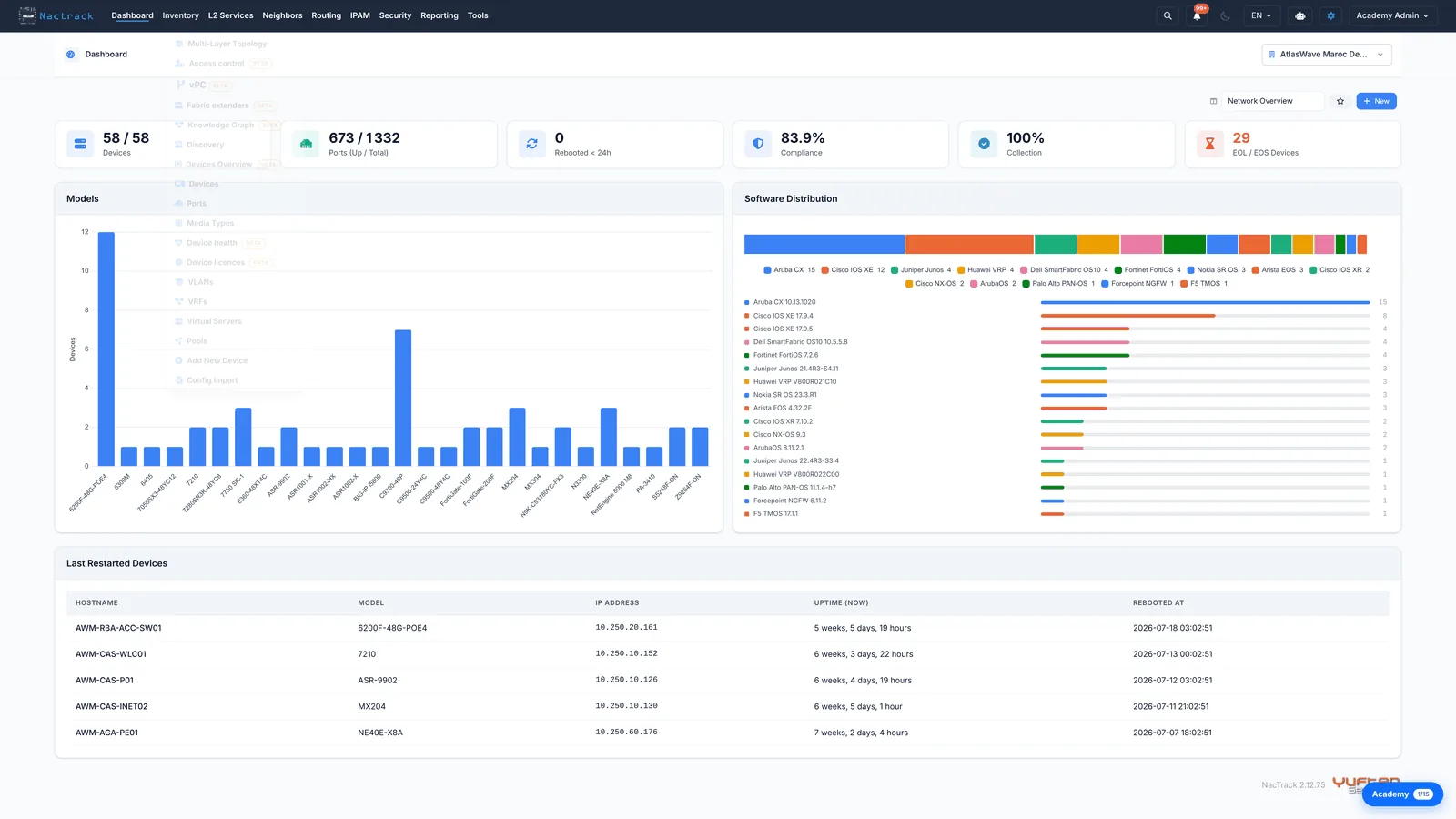
Open the Inventory menu. This is where NacTrack keeps what it found rather than what you asked about: devices, ports, VLANs, and the rest of the collected estate.
2. Choose VLANs
app.nactrack.com/inventory/vlans
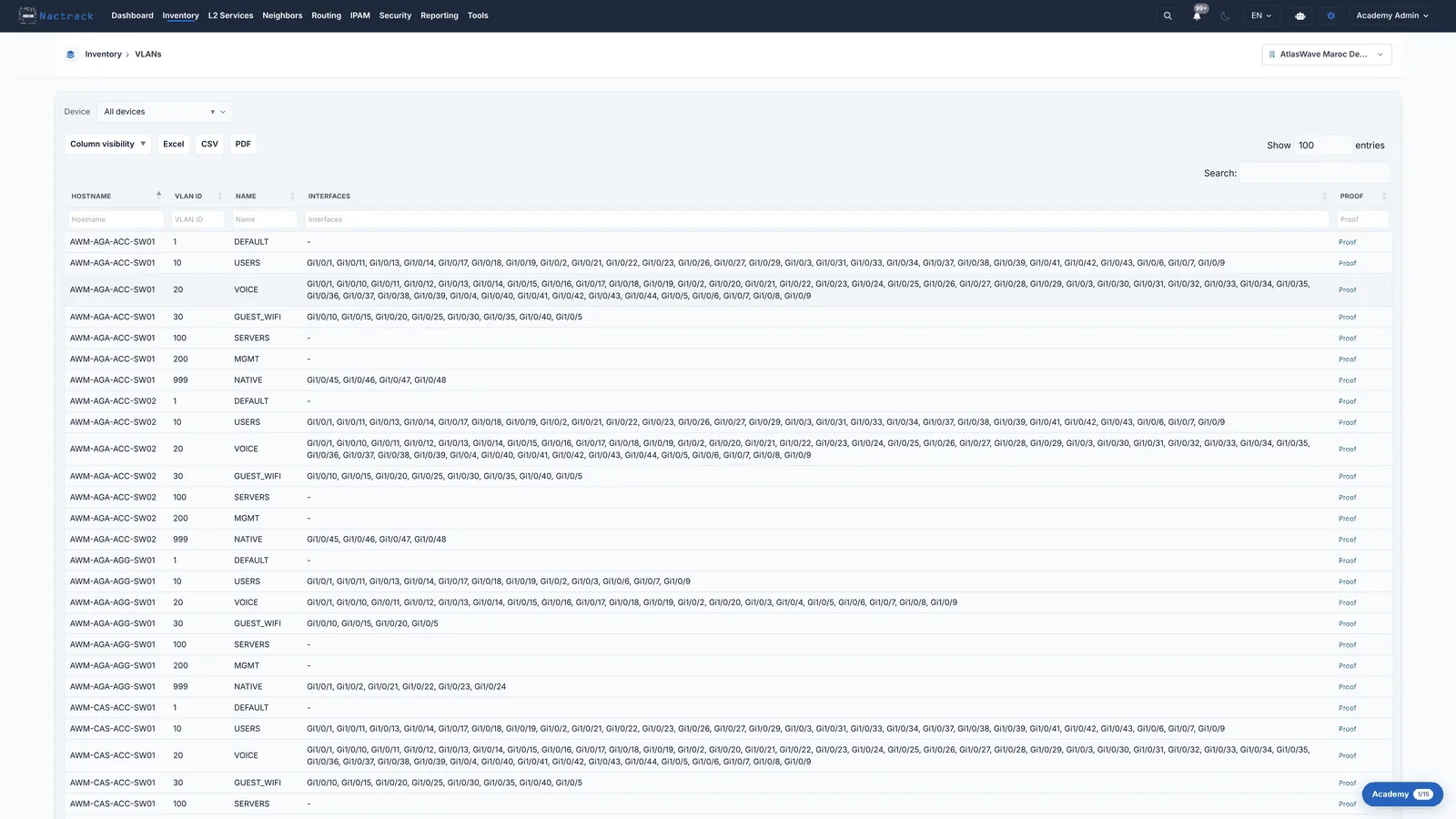
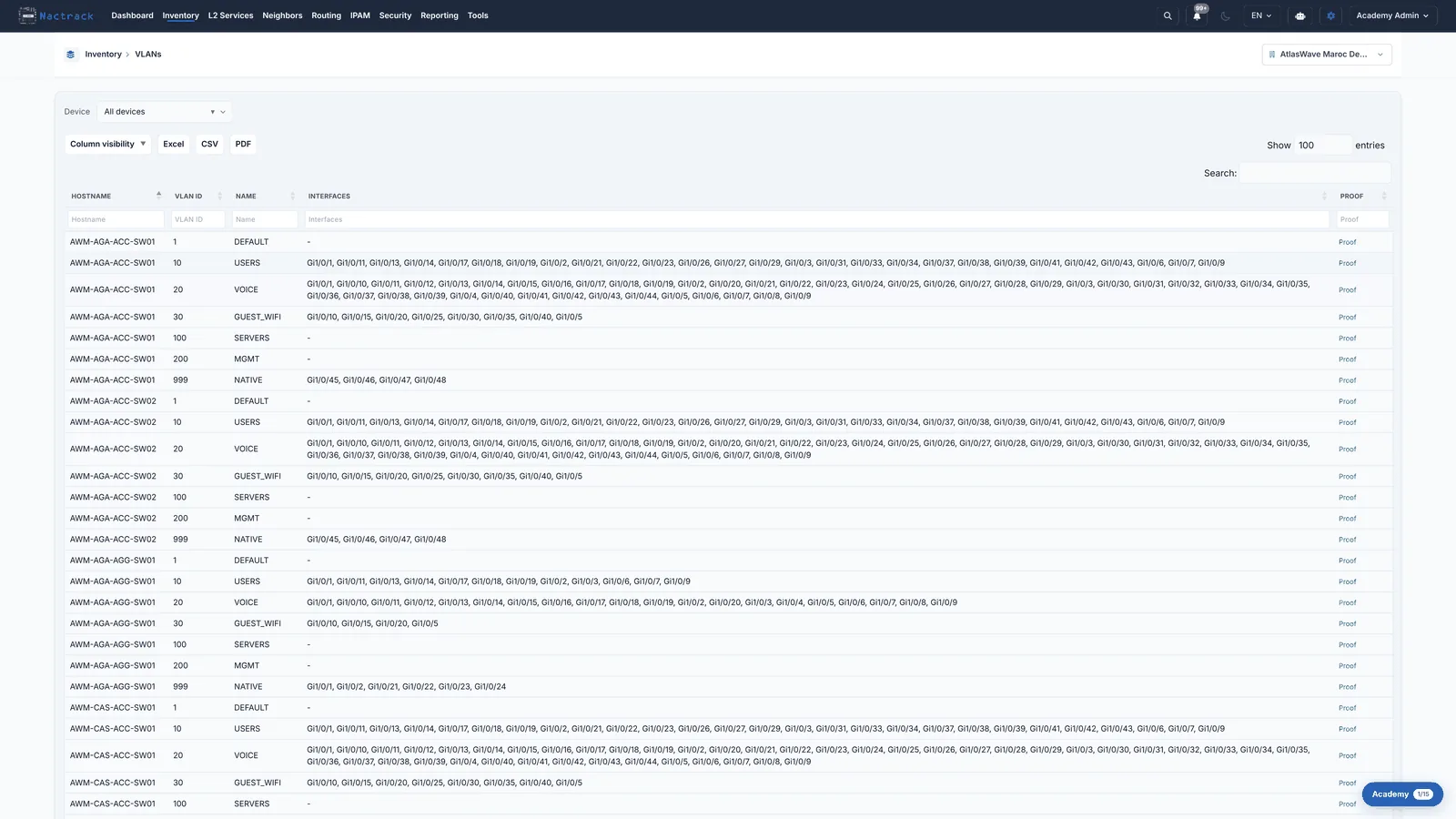
Choose VLANs. Every row is one VLAN on one switch, so the same VLAN id appears once per device that carries it. The Interfaces column is the answer to our question: the ports on that switch assigned to that VLAN.
3. Read one row
app.nactrack.com/inventory/vlans
Read a single row left to right: the switch, the VLAN id, the name the switch gives it, and the ports carrying it. A VLAN that is defined but has no ports assigned shows a dash, which is worth noticing before you assume it is in use.
The limits
What this view does not tell you
The Interfaces column is built from access, voice and native VLAN assignments only. It does NOT read the trunk allowed-VLAN list, so a VLAN carried across an uplink does not appear here. To see that, look at the Allowed VLANs column on the Ports page.
The same VLAN id on two switches is not necessarily the same layer 2 domain. It is the same domain only if a path carries it between them.