How to find where an IP address lives on the network
You have an IP and need to know which device holds it and behind which interface. IP Finder searches every source NacTrack collected - ARP tables, the inventory and the neighbour tables - and groups the answer by where it was found, so you can tell an endpoint apart from a device management address at a glance.
The same procedure as a recording, subtitled in English and French. This recording predates the latest revision of the steps: it opens on a screen the written guide no longer includes.
Before you start
What you need
Module required: core.
Permission required: use_troubleshooting.
all
1. Open the Tools menu
app.nactrack.com/troubleshooting/ipfinder
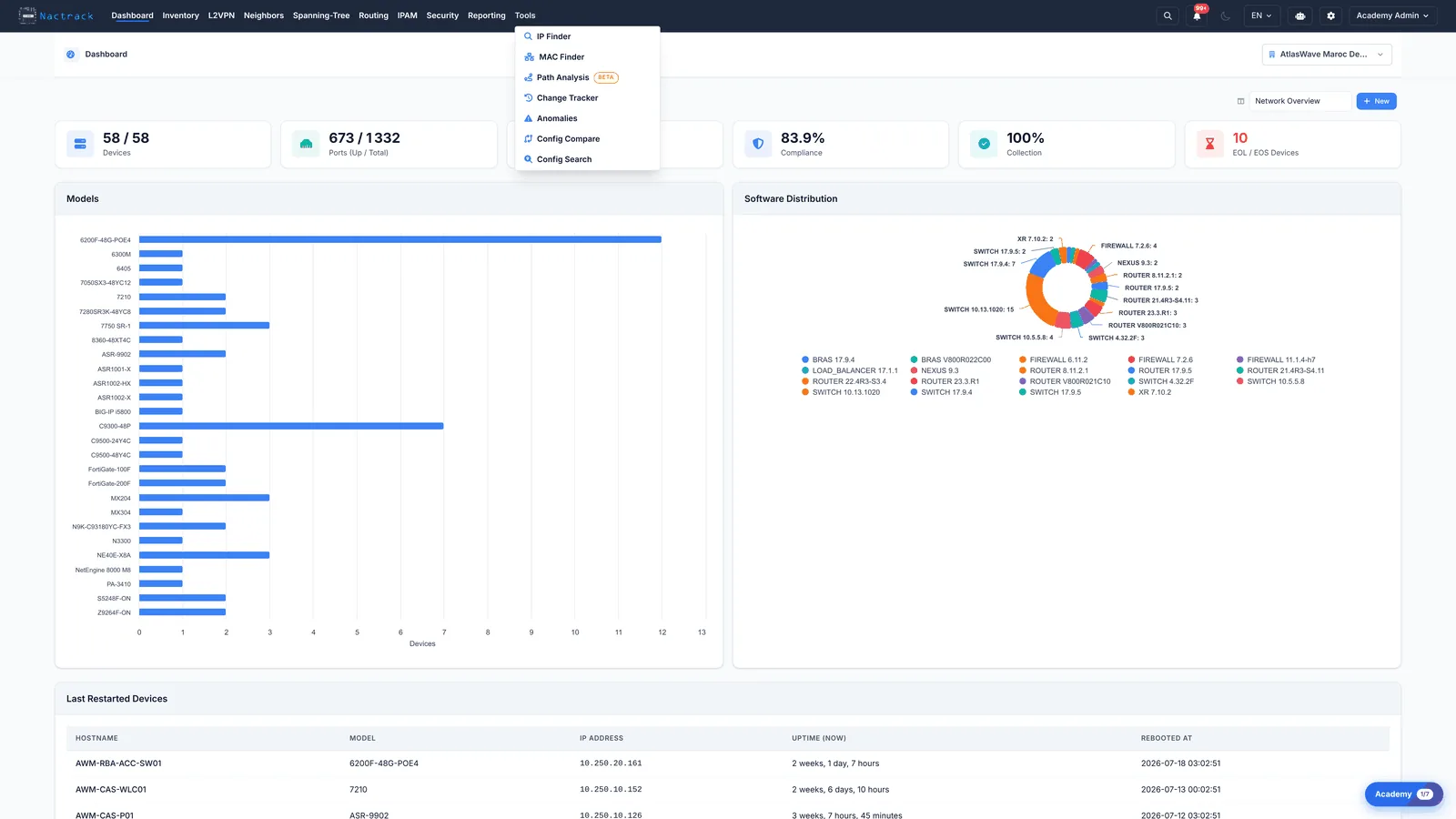
Open the Tools menu. IP Finder sits at the top of the list, just above MAC Finder: the two are companions, one starting from an address and the other from a hardware identifier.
2. Choose IP Finder
app.nactrack.com/troubleshooting/ipfinder
Choose IP Finder. Like MAC Finder it opens with a single field and no list of its own, and it accepts either one host address or a whole subnet in CIDR notation.
3. Type the IP address
app.nactrack.com/troubleshooting/ipfinder
Type the address you are looking for.
4. Read the results
app.nactrack.com/troubleshooting/ipfinder
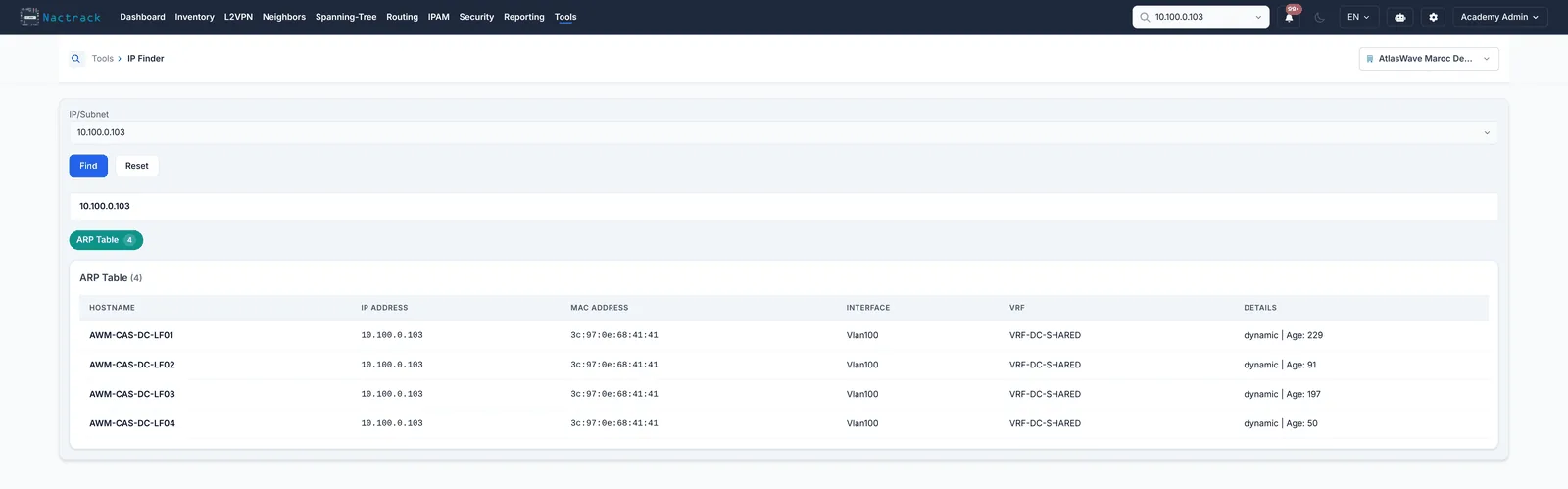
Click Find. The block is headed by the source that matched, here the ARP table, and every row names the device that holds the entry, the interface, the VRF and the MAC address sitting behind that IP.
The limits
What this view does not tell you
Several devices normally answer for the same endpoint IP. Each is a router or switched virtual interface that has the address in its own ARP table; they are not duplicates.
The answer is only as fresh as the last collection. An ARP entry that has since aged out on the device will still be shown until the next collect round.